

Help
Press a topic to open it. Each one has short steps with pictures.
Picture guides
How to sign in
3 steps
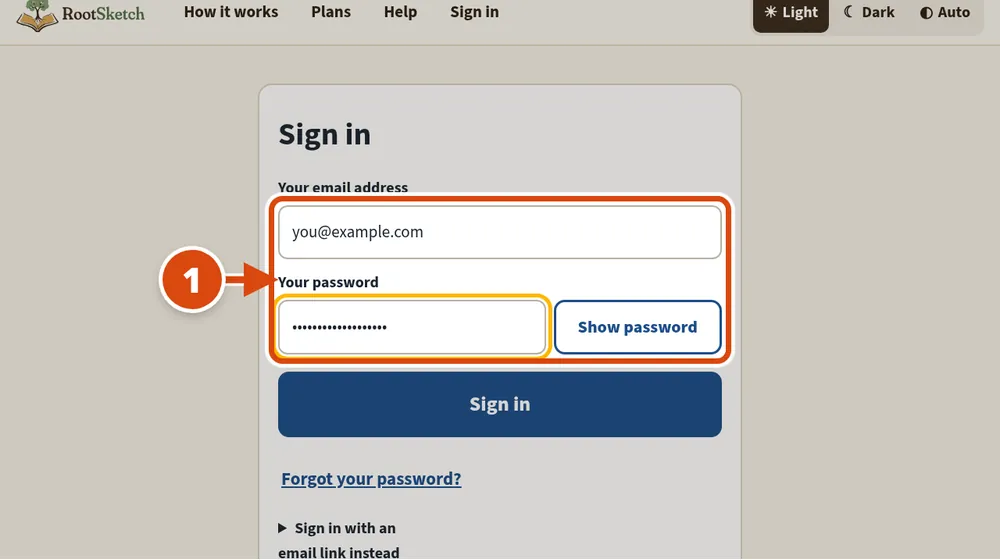
Type your email address and your password. 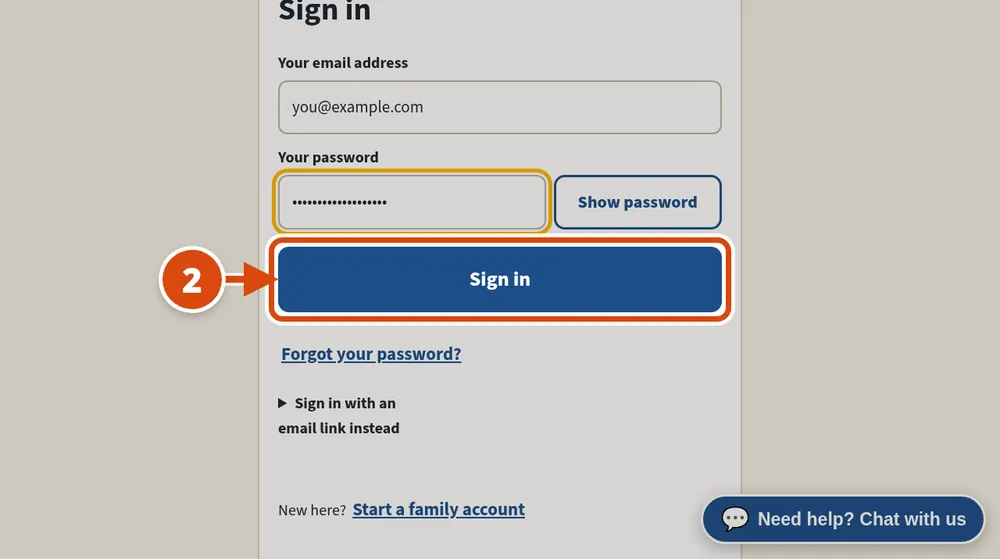
Press the big blue “Sign in” button. 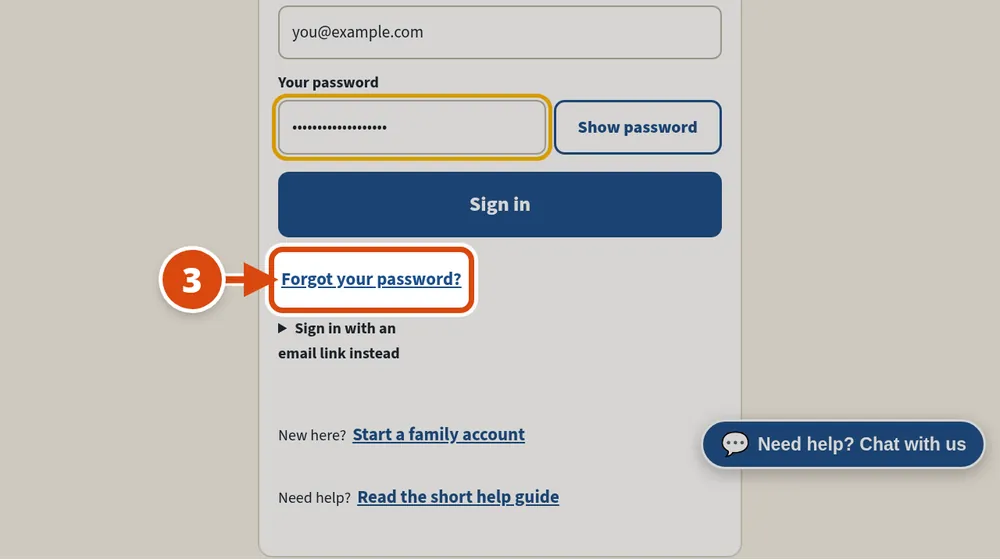
Forgot your password? Press “Forgot your password?” and type your email. We will help you choose a new one.
How to upload pictures
4 steps
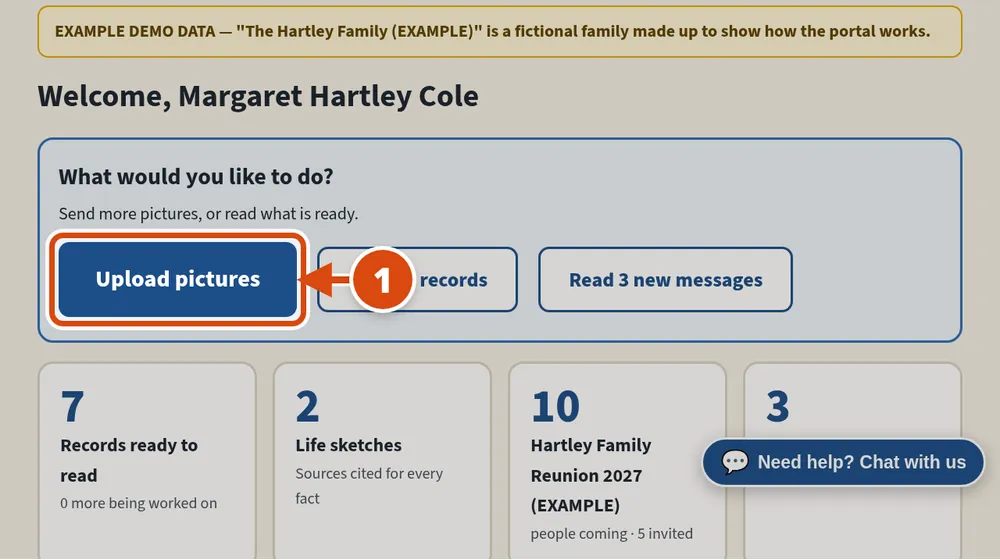
On your home page, press the big “Upload pictures” button. 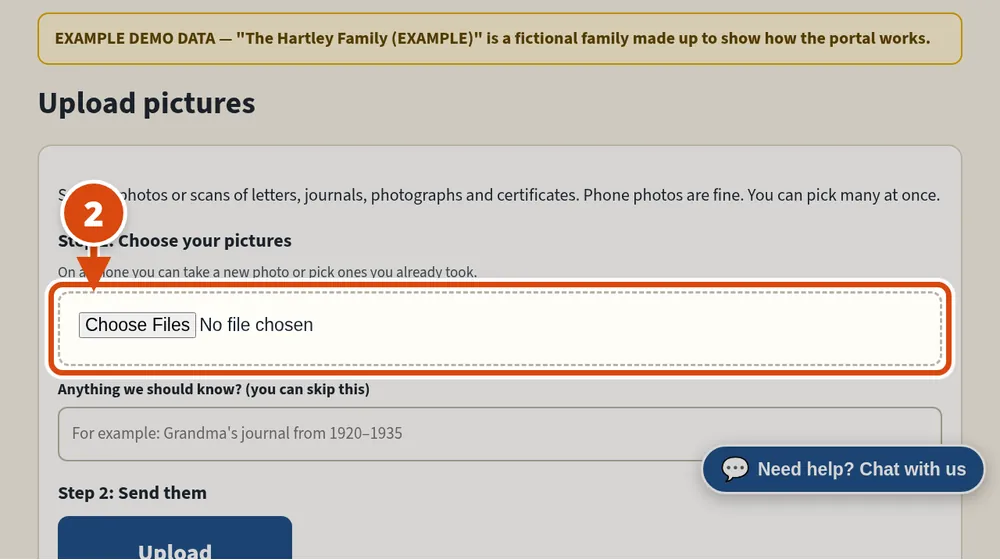
On a computer: press “Choose files” and pick your pictures. You can pick many at once. 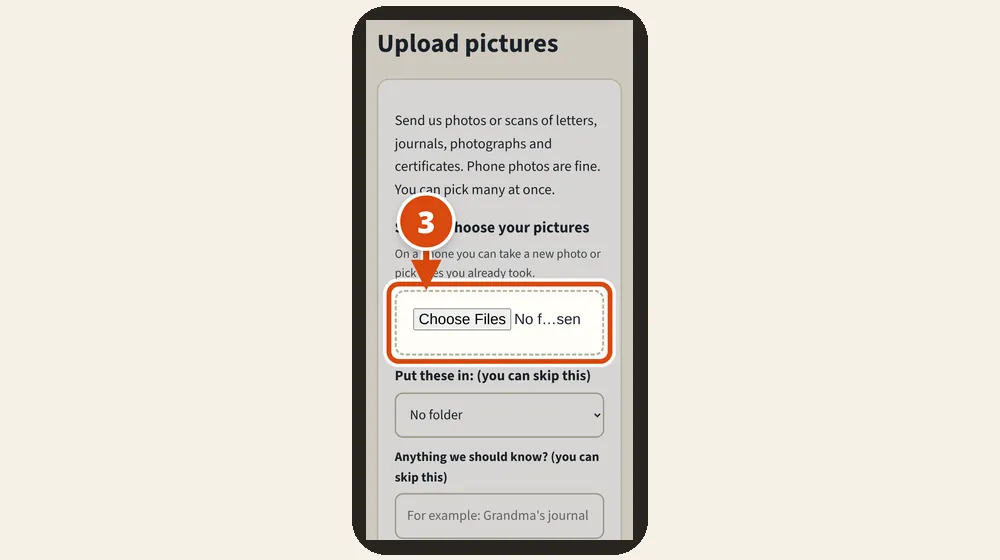
On a phone: press “Choose files”, then “Take Photo” to use the camera, or “Photo Library” for pictures you already took. 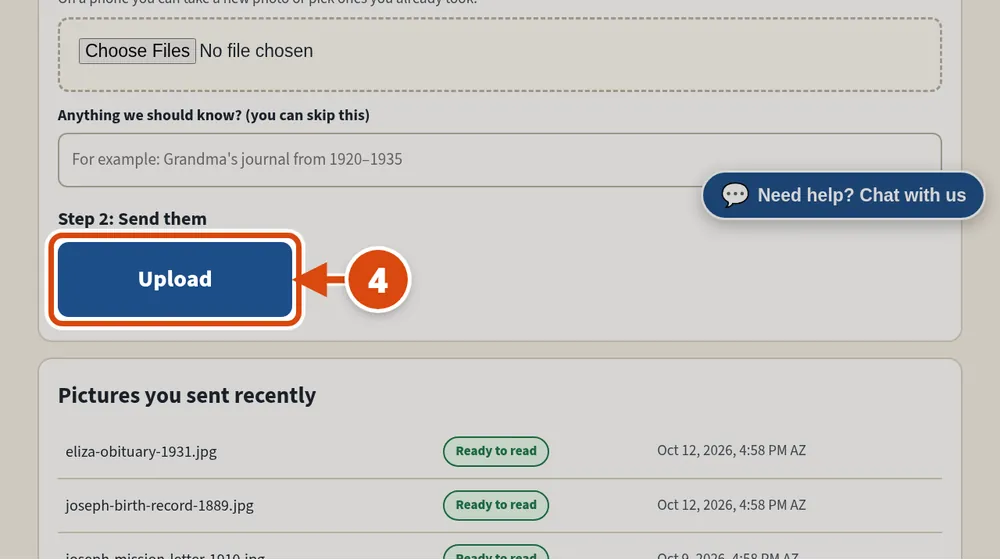
Press “Upload”. A green “Thank you” message shows that we received them.
How to find your records
4 steps
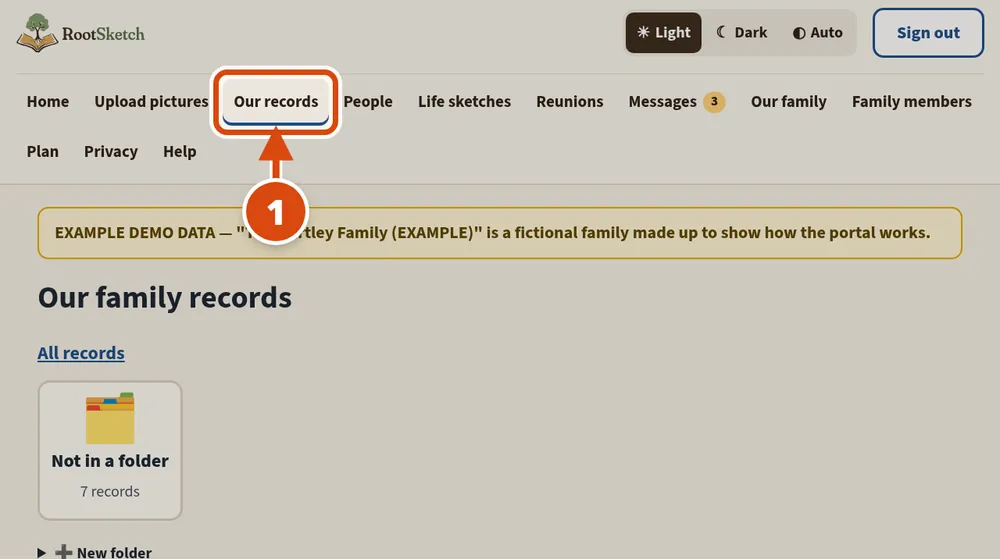
Press “Our records” at the top of the page. 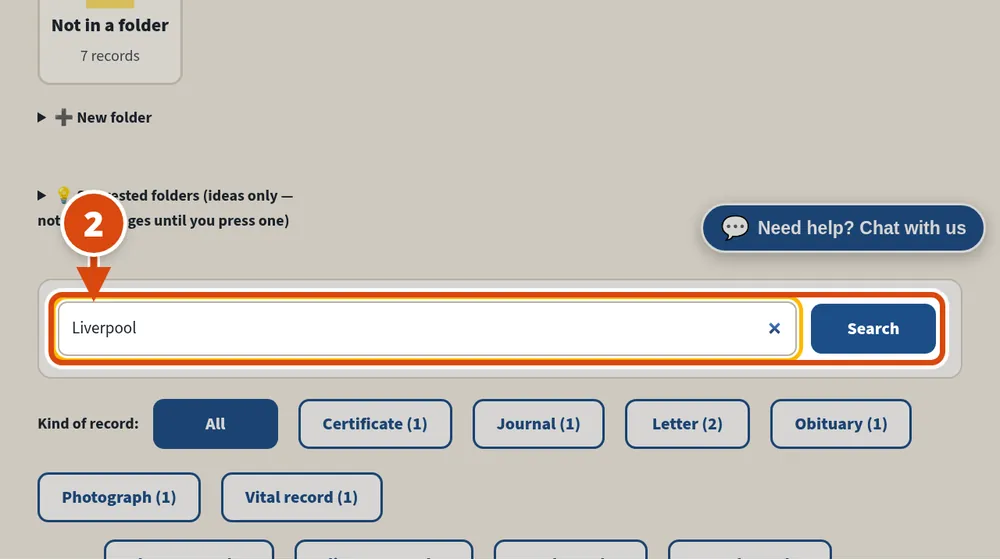
Type a name, a place or any word in the search box, then press “Search”. 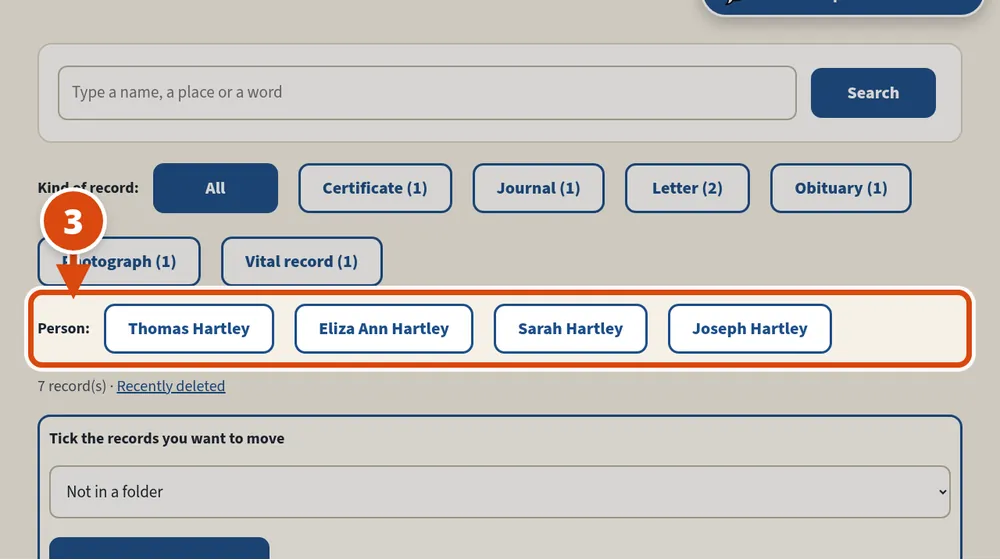
Or press a person’s name to see every record about them. 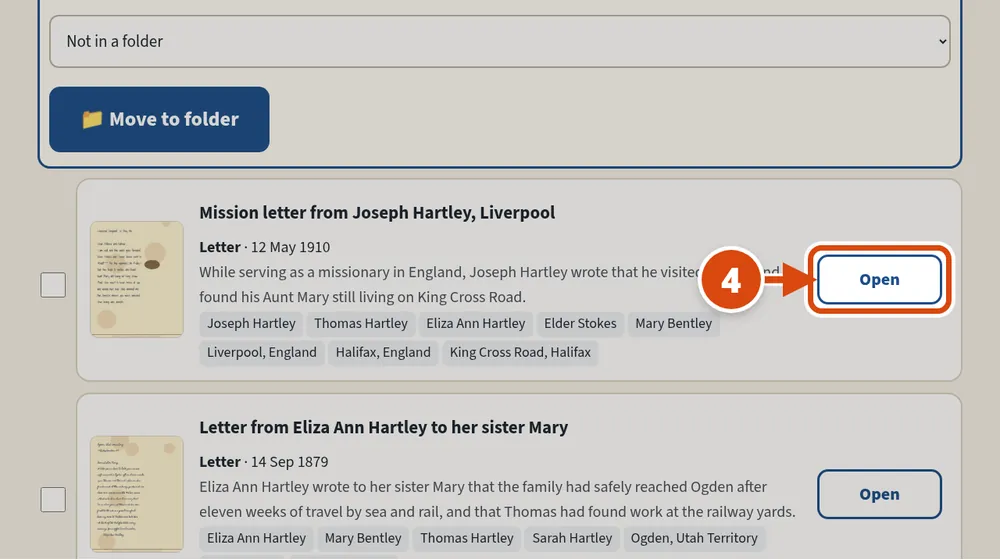
Press “Open” to see the picture and the typed-up words.
How to put records in folders
4 steps
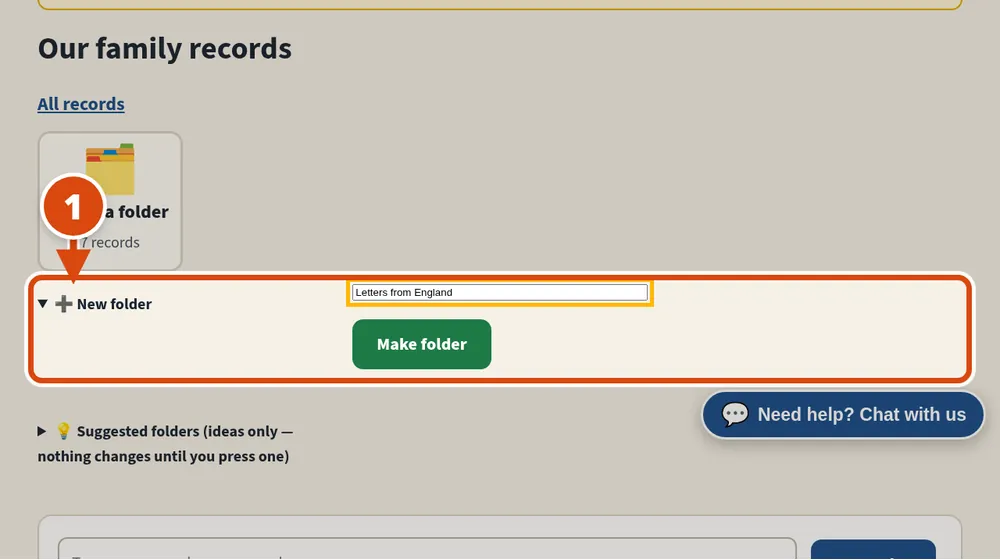
On “Our records”, press “New folder”, type a name (for example “Letters from England”) and press “Make folder”. You can make folders inside folders too. 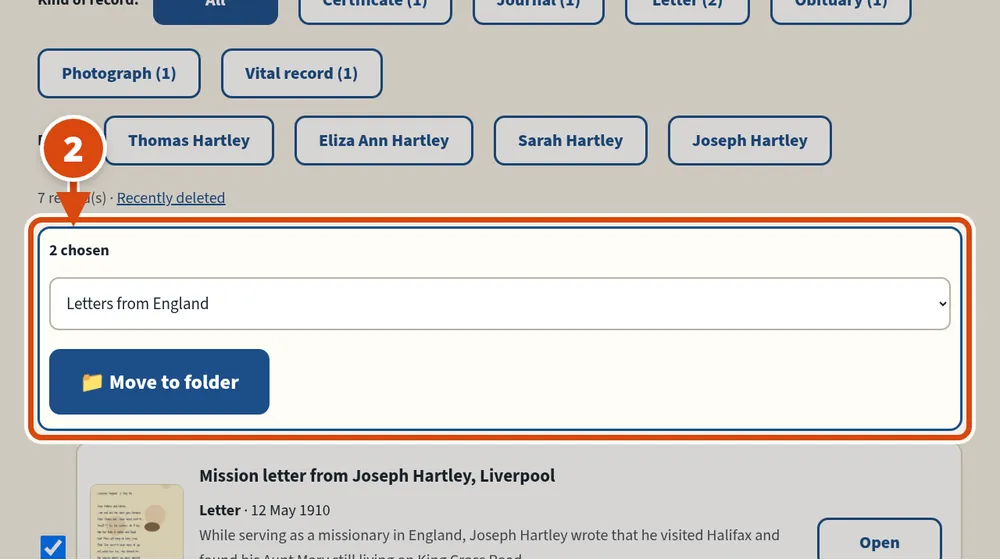
Tick the box beside each record you want to move, choose the folder, and press “Move to folder”. On a computer you can also drag a record onto a folder. 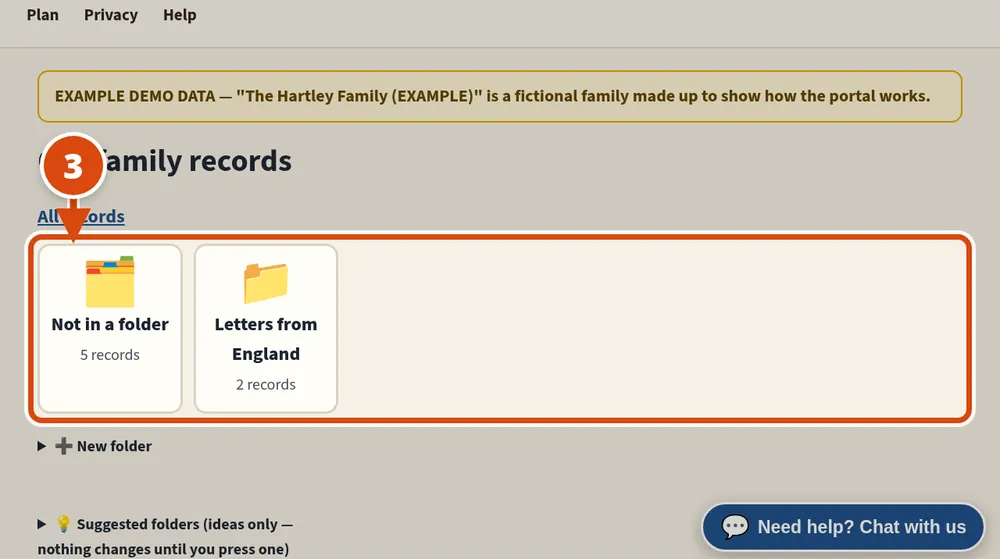
Your folders show as big folder pictures with the number of records in each. Press one to open it. “All records” at the top takes you back. 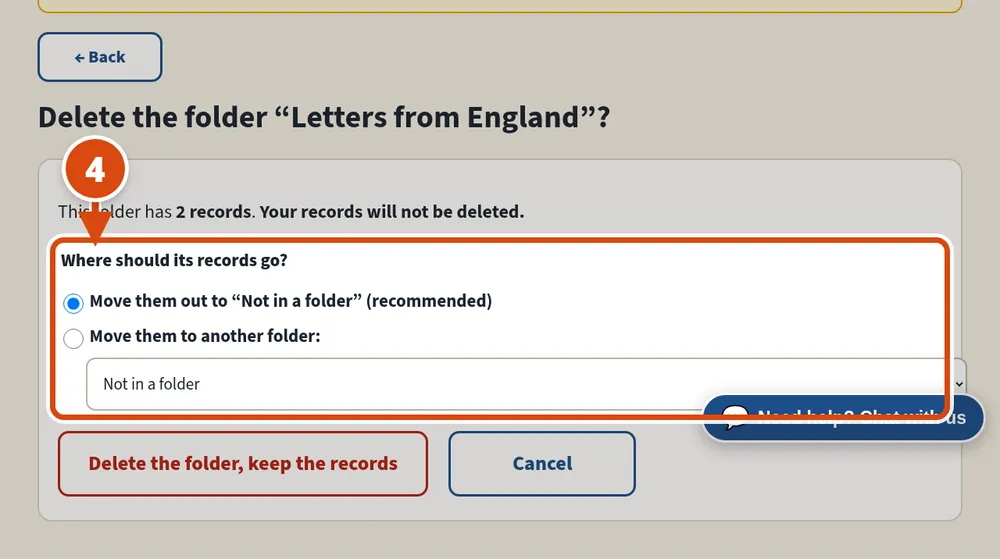
To delete a folder, open it and press “Delete folder…”. Your records are never deleted: they move out of the folder, or to another folder you choose.
How to make a life sketch
3 steps
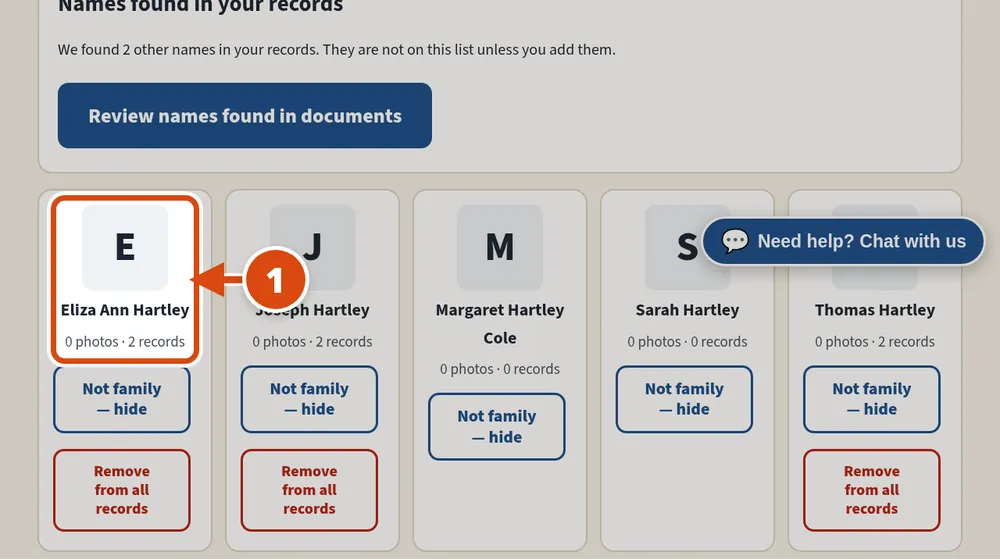
Press “People” at the top, then press the name of the person you want a life sketch of. 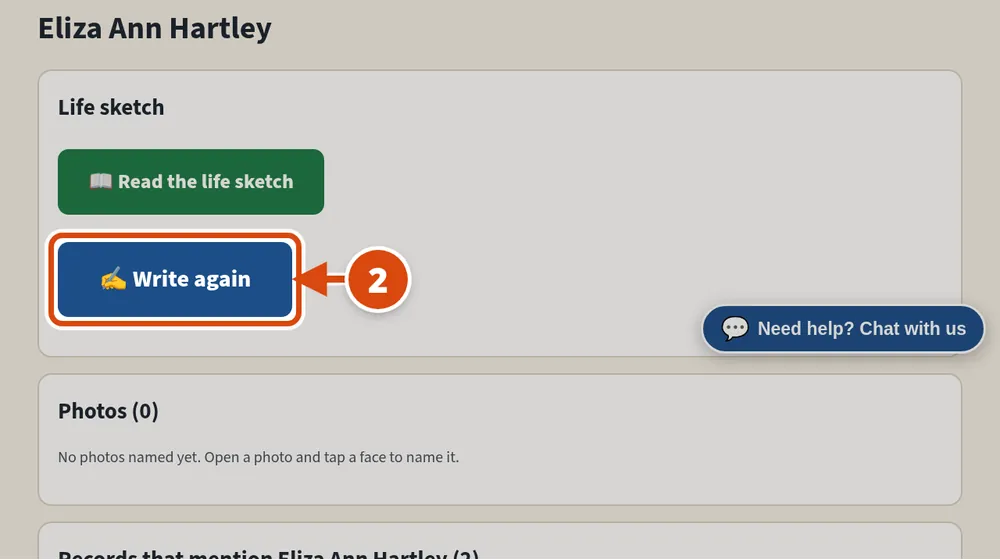
Press the big “Write a life sketch” button (it says “Write again” if there is one already). If we ask “Is this person still living?”, tell us. We only write sketches of people who have passed away. 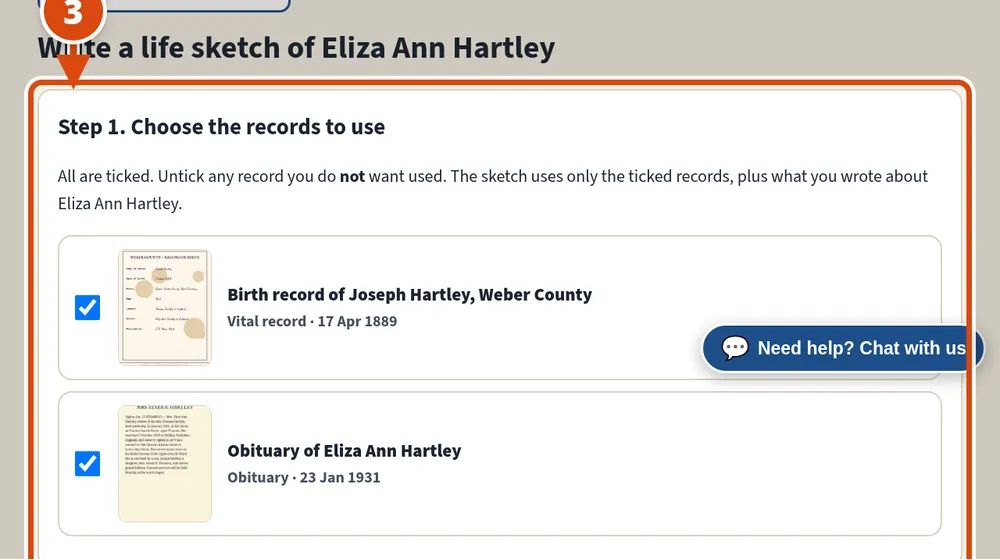
Every record about them is ticked. Untick any you do not want used, then press “Write the life sketch”. It takes about a minute.
How to bring in your family tree file (Ancestry, FamilySearch, MyHeritage)
10 steps
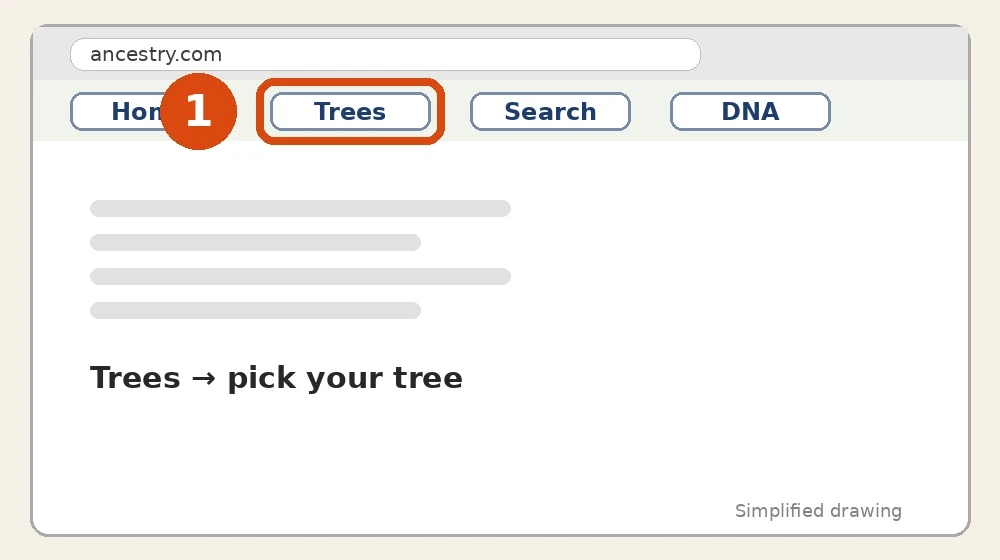
From Ancestry (you must own the tree): sign in at ancestry.com, press “Trees” at the top, and pick your tree. 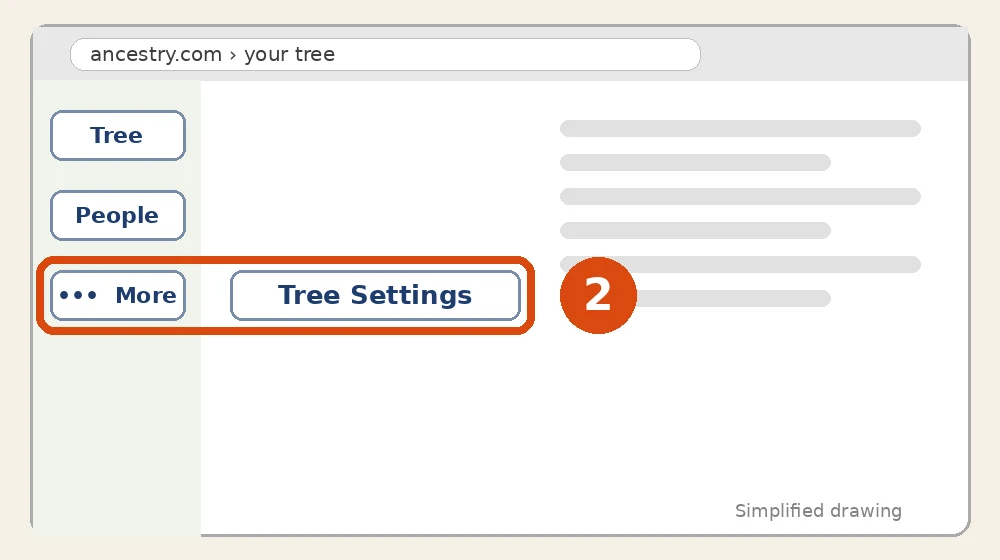
On the left, press “More” (three dots), then “Tree Settings”. 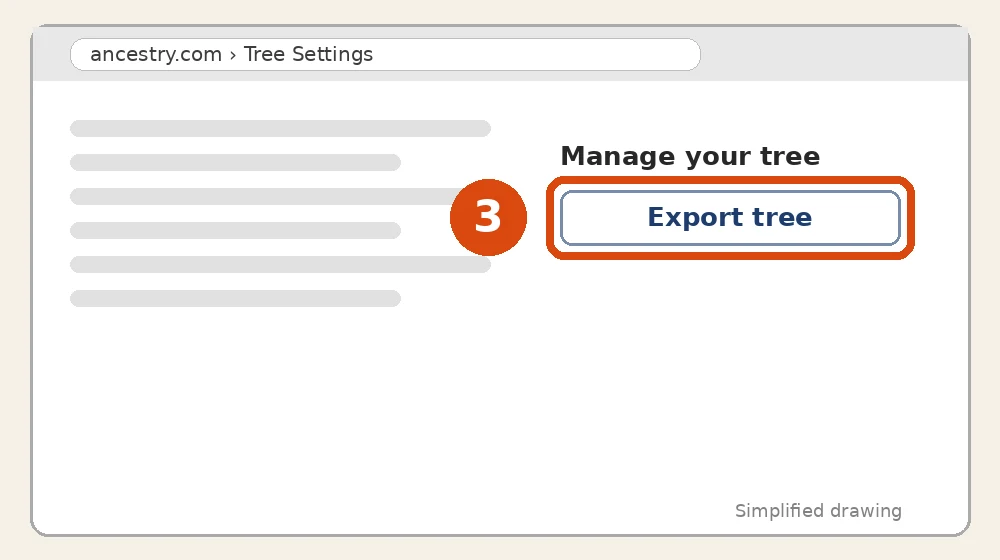
On the right, under “Manage your tree”, press “Export tree”, then “Export”. Wait while it says it is making the file. 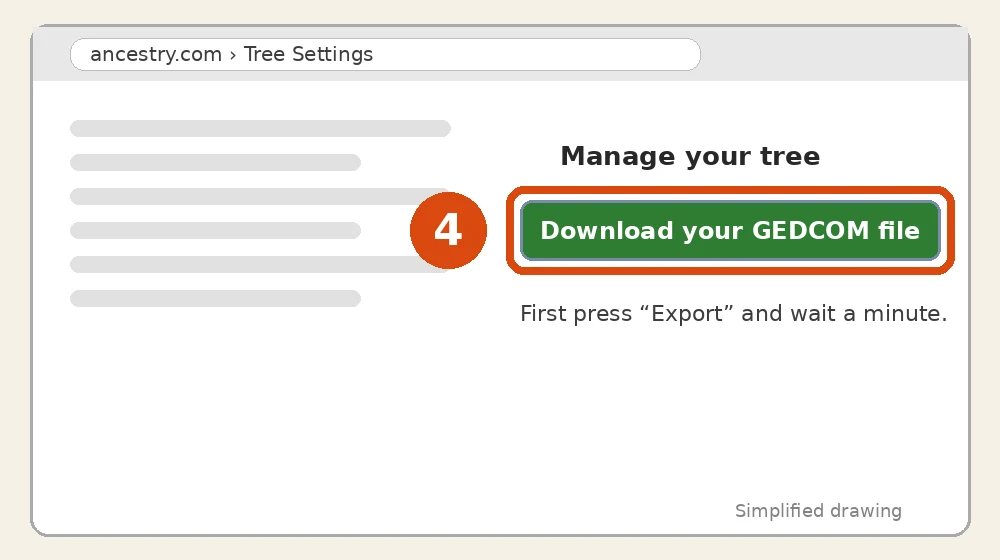
Press “Download your GEDCOM file”. It saves a .zip file on your computer. You can send us the .zip as it is. 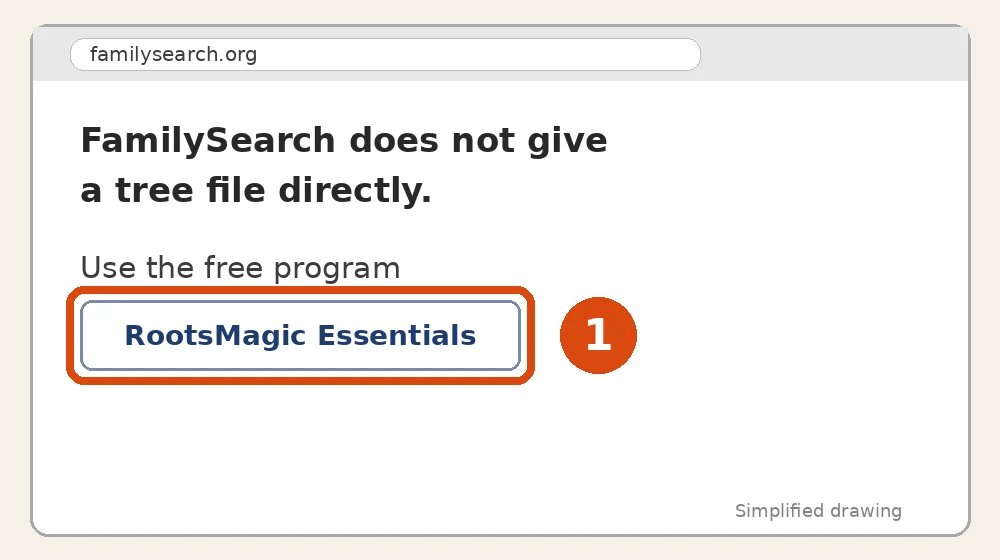
From FamilySearch: FamilySearch does not let you download a tree file directly. Instead, install the free program “RootsMagic Essentials” on your computer. 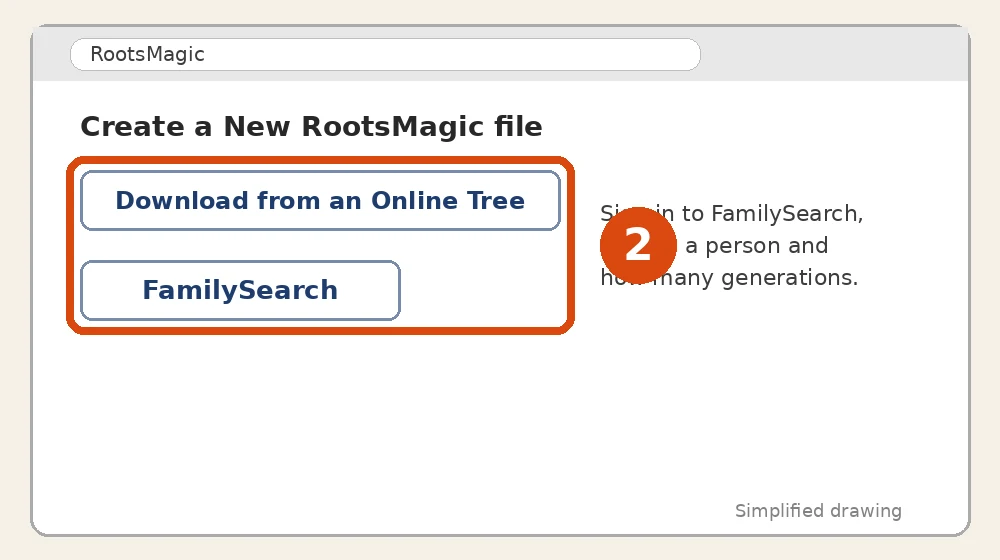
In RootsMagic, make a new file and choose “Download from an Online Tree”, then “FamilySearch”. Sign in, choose the person to start with and how many generations, and let it download. 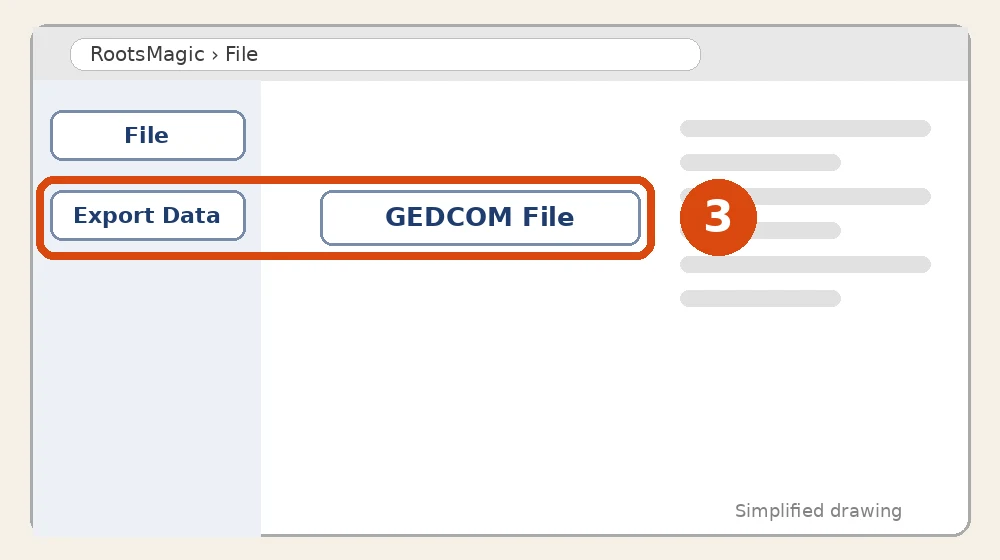
Then press “File”, “Export Data”, and “GEDCOM File”, and save it. (MyHeritage and most other family tree programs also have an “Export” to GEDCOM.) 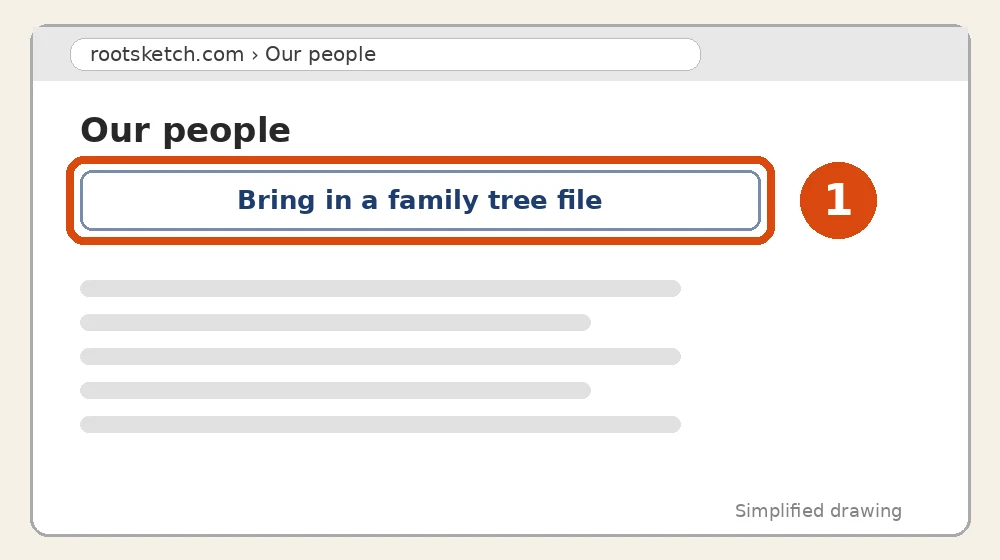
On RootSketch, press “People” at the top, then “Bring in a family tree file”. 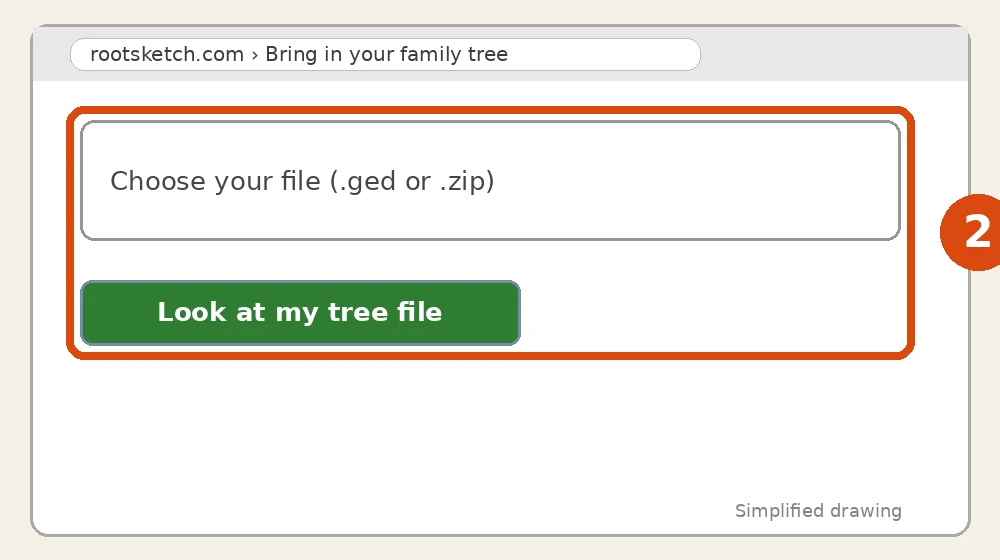
Choose your file (.ged or .zip) and press “Look at my tree file”. Nothing is added yet. 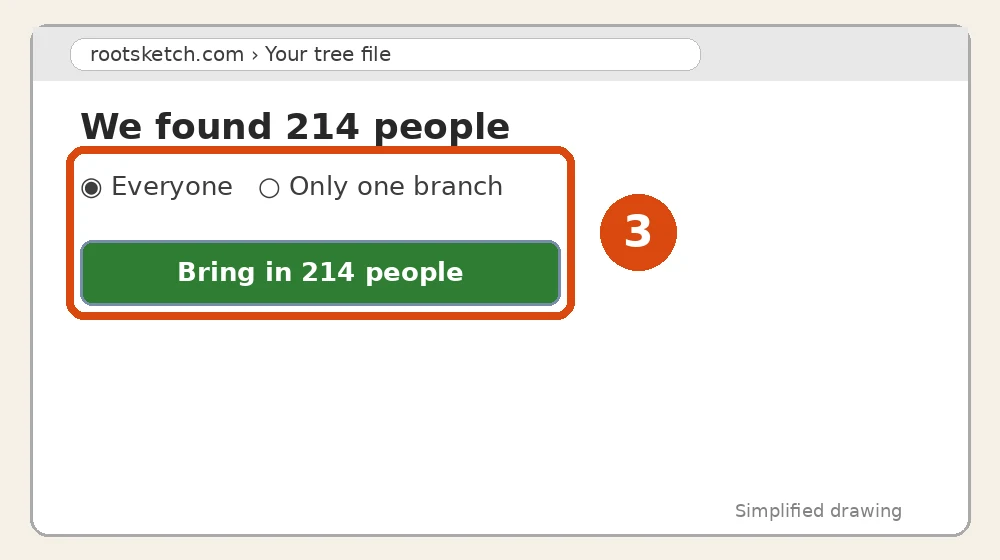
We show how many people are in it. Choose everyone, or one branch and how many generations, then press “Bring in”. If we are not sure someone is already in Our people, we ask you.
How to read a life sketch
3 steps
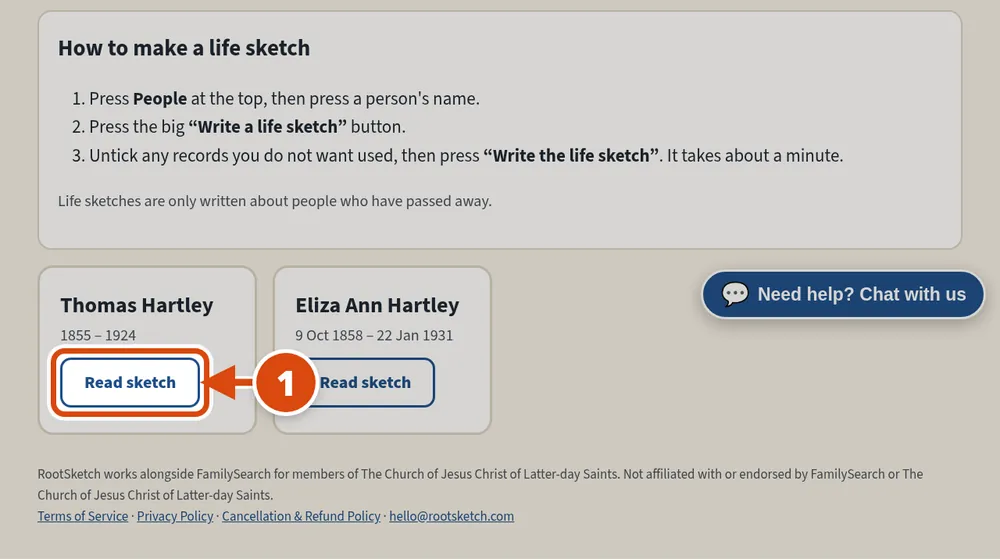
Press “Life sketches” at the top, then “Read sketch” under a name. 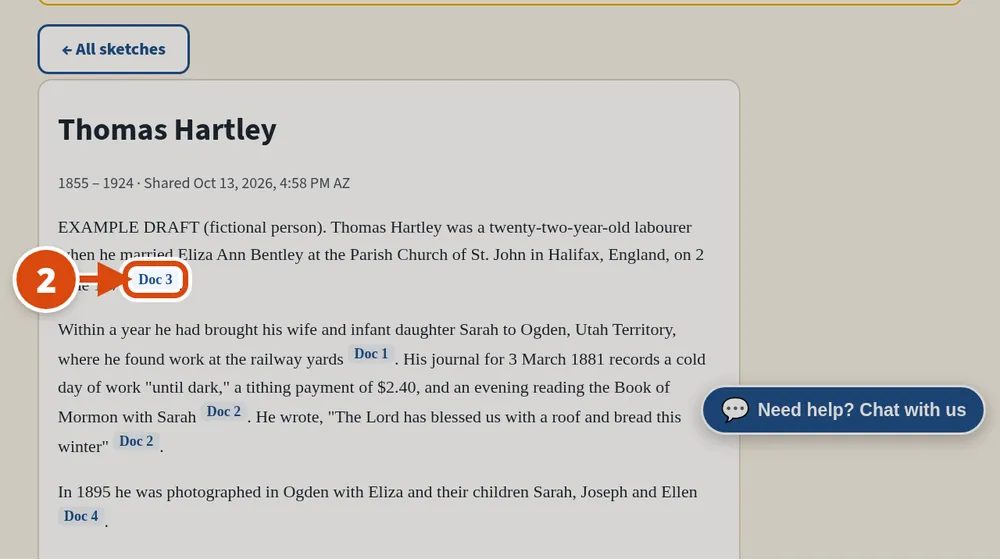
Read the story. The small blue “Doc” tags show which record each fact came from. Press one to see that record. 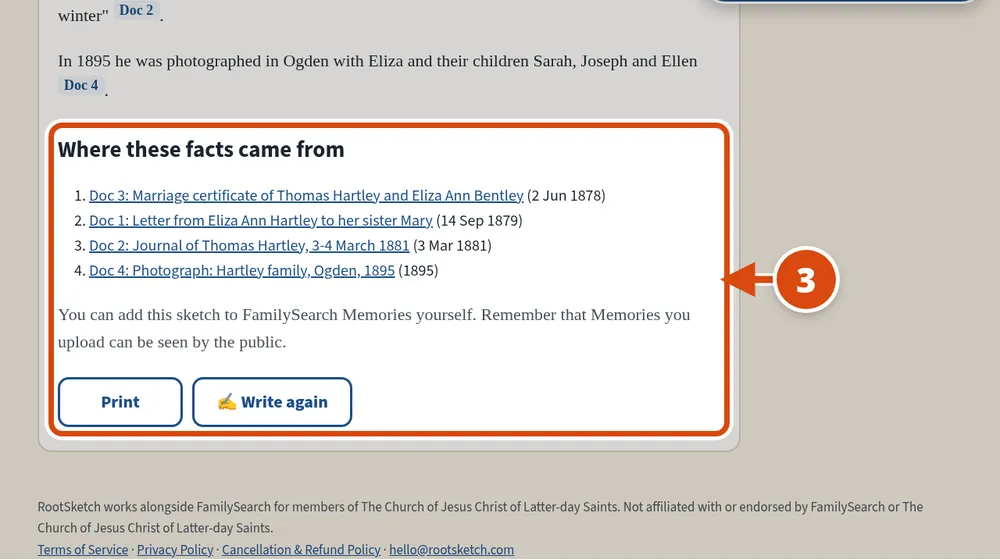
The list of sources at the bottom shows every record used. Press “Print” for a paper copy.
How to plan a reunion and reply to an invitation
4 steps
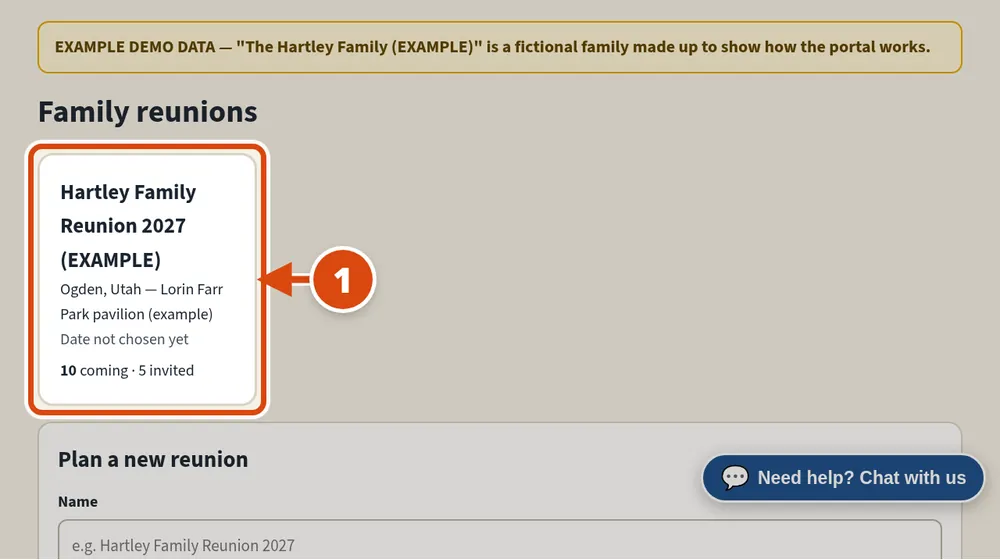
Press “Reunions”, then open your reunion, or make a new one. 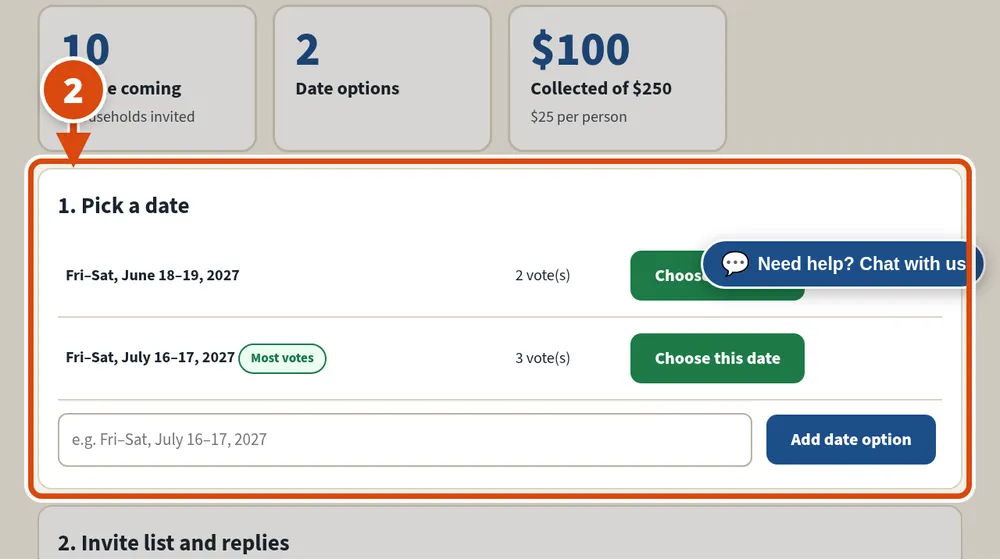
Add the dates you are thinking about. Your family can vote for the dates that work for them. 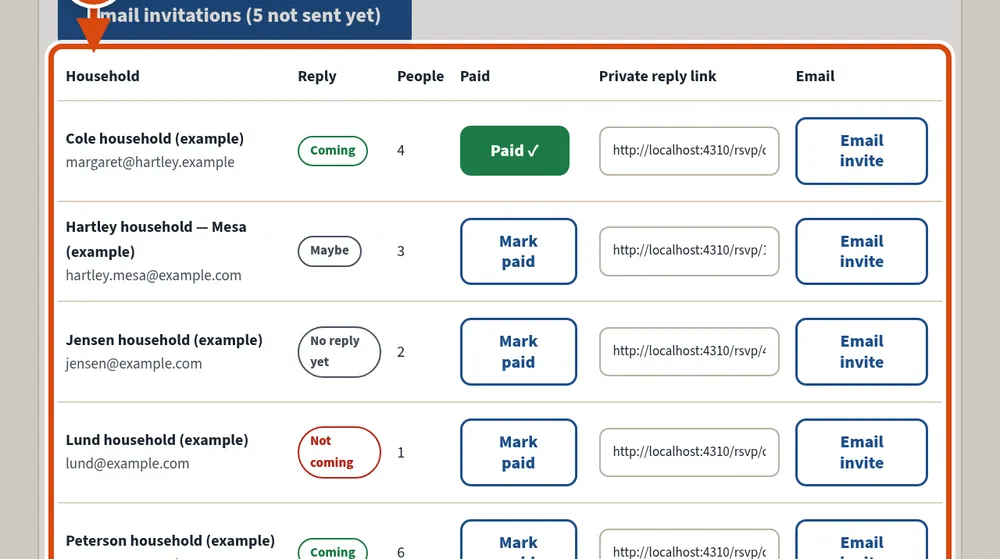
Add each household to the invite list. Each one gets its own private reply link that you can email or text. 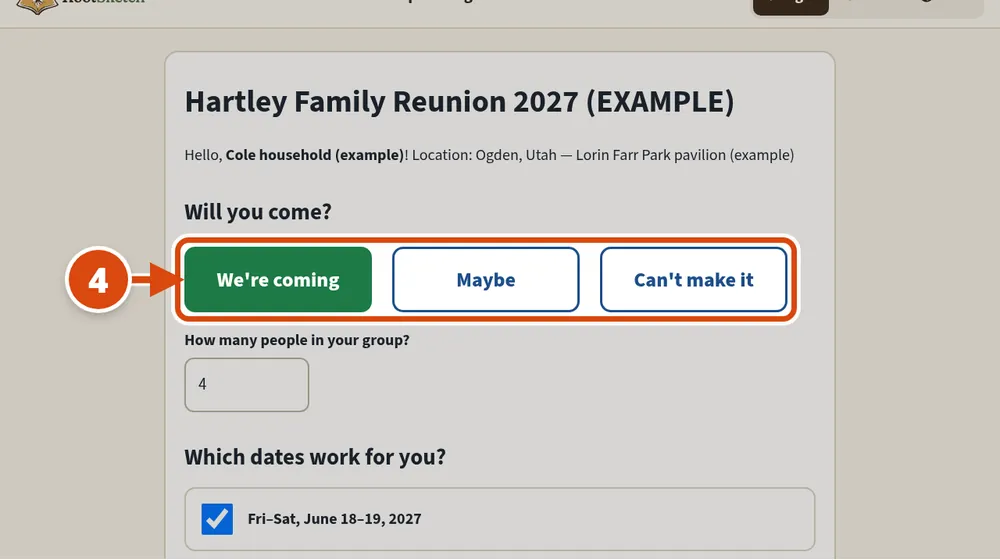
Your relatives open their link, choose “We’re coming”, “Maybe” or “Can’t make it”, and press “Save my reply”. No account is needed.
How to send us a message
2 steps
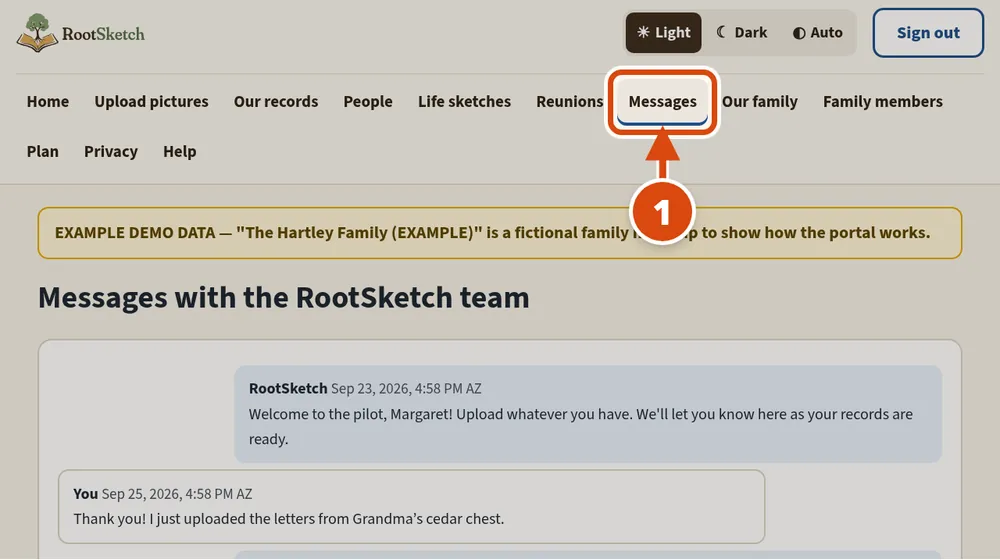
Press “Messages” at the top. A number shows how many new messages you have. 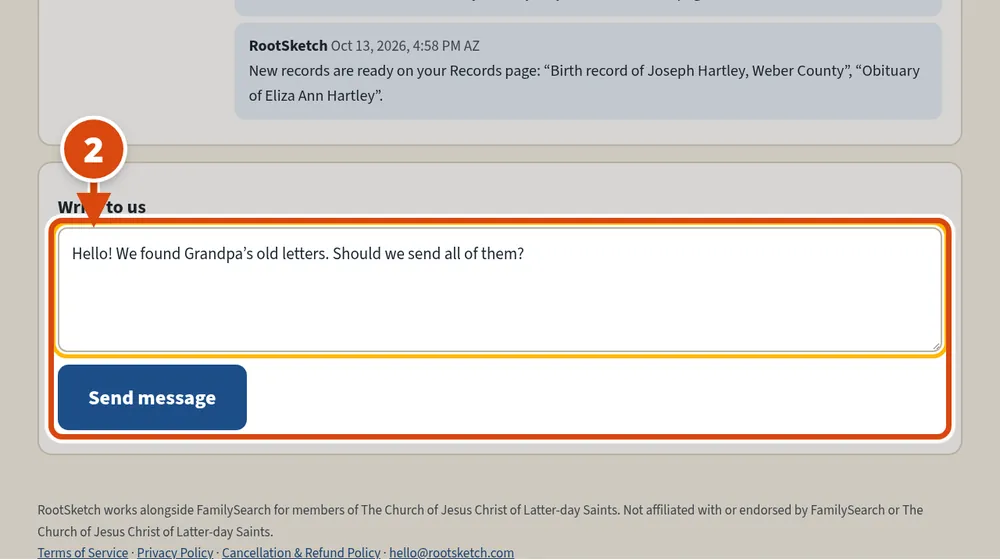
Type your message in the box and press “Send message”. We will reply here.
More questions
Make the words bigger
hold the Ctrl key (⌘ on a Mac) and press +. On a phone or tablet, spread two fingers apart on the screen.
Light or dark screen
use the Light, Dark or Auto buttons at the top right.
You will stay signed in
on your own computer for 30 days. On a shared computer, press “Sign out” when you are done.
Your original pictures are always kept
, exactly as you sent them.
Name the people in a photo
open the photo in “Our records”. Each face has a numbered box. Tap a box, type the name (or pick it from the list), and press “Save name”. Press “Skip” if you don't know, or “Not a face” if the box is wrong. Missed someone? Press “+ Add a face we missed”, then tap their face. When we think we know someone, we ask “Is this …?” — only your “Yes” saves the name.
People
press “People” at the top to see Our people: everyone you named in photos or added. Names found in the writing show on each record under “People mentioned” — press “+ Add to Our people” for family, or “✕ Remove”. Not family? Press “Not family — hide” (there is an Undo), or use “Review names found in documents” to sort them all at once. Tap a person to see their photos and every record that mentions them. If two names look like the same person (for example “Dan Walmer” and “Lt. Walmer”), we ask you; press “Yes, the same person” to join them. Face data is used only to help your family label your own photos, is never shared, and is deleted with the record.
Make a life sketch
press “People”, press a person’s name, then “Write a life sketch”. Untick any records you don’t want used and press “Write the life sketch”. It takes about a minute. Want a different version? Press “Write again” and choose other records; earlier versions are kept. We only write sketches of people who have passed away, so we may ask “Is this person still living?” first.
Choose a focus (optional)
on the “Write a life sketch” page, type what the sketch should focus on, for example “his military service and time as a prisoner of war”. That part is told in more detail, still using only facts from the ticked records.
Edit a life sketch (Owner and Helpers)
open the sketch and press “✏️ Edit this sketch”. Change the words in the big box and press “Save my changes”, or press “Cancel”. Want help? Type what to change (for example “make it flow better, less like a list”) and press “✨ Ask AI to smooth the writing”. Each save makes a new version; earlier versions are kept under “Other versions”, with who edited them.
Family tree file (Ancestry, MyHeritage, FamilySearch)
press “People”, then “🌳 Bring in a family tree file”. Choose your .ged (or Ancestry's .zip) file and press “Look at my tree file”. Choose everyone or one branch, then press “Bring in”. People already in Our people are joined, not doubled; if we are not sure, we ask “Is this the same person?”. What the tree says about each person is kept as a “from family tree file” record that life sketches can use. People who may still be living get only their name. See the pictures.
Photos, Notes and Documents
we sort what you upload automatically into 📷 Photos, 📝 Notes (your own research or handwritten notes) and 📄 Documents. You can pick one yourself when you upload, or change it later. On “Our records”, press the big Photos, Notes or Documents buttons to see just those. To change one later, open the record and press “Change to…”. Your notes are used as your family's research when a life sketch is written.
Folders
on “Our records”, press “New folder” to make one. To file records, tick them and press “Move to folder”, or open a record and press “Move to folder”. You can pick a folder when you upload (“Put these in:”). A record lives in one folder at a time. “All records” always shows everything, and “Not in a folder” shows what is not filed yet. Deleting a folder never deletes your records. “Suggested folders” are ideas (by person, decade or kind of record) — nothing changes until you press one. Viewers can open folders but not change them.
Invite family members (Heritage plan)
press “Family members” at the top. Type their name and email, choose Admin (manage members and make changes), Helper (upload, edit and tag), or Viewer (can only look and download), and press “Send the invitation”. They get an email with easy steps and choose their own password. Heritage allows 5 logins in total, including you. To take someone off, press “Remove” next to their name — nothing they added is deleted.
Pages this month
the Plan page shows how many pages or photos you have used. If you go over, extra pages wait safely until next month. You can also add 250 more for $15. Nothing is ever charged without you pressing a button.
Change a title, date or place
open the record and press “Edit details”. Type your changes and press “Save changes”. We keep your changes, even if the record is typed up again.
Delete a record
open it in “Our records”, press “Delete this record” at the bottom, then “Yes, delete it”. Changed your mind? Press “Recently deleted” at the top of Our records, then “Restore”. Deleted records are kept there for 30 days.
Still stuck?
Choose “Forgot your password?” on the sign-in page, and we will help you sign in.